Tutorial
Getting Started
Welcome to yCheck, your all-in-one app for building powerful, flexible checklists with reminders, dependencies, sub-items, folders, and an AI assistant to help you brainstorm. This tutorial walks you through the core features step-by-step so you can get the most out of the app. Whether you’re organizing a trip, planning a project, or keeping track of daily routines, yCheck helps you think clearly and act confidently.
Tabs:
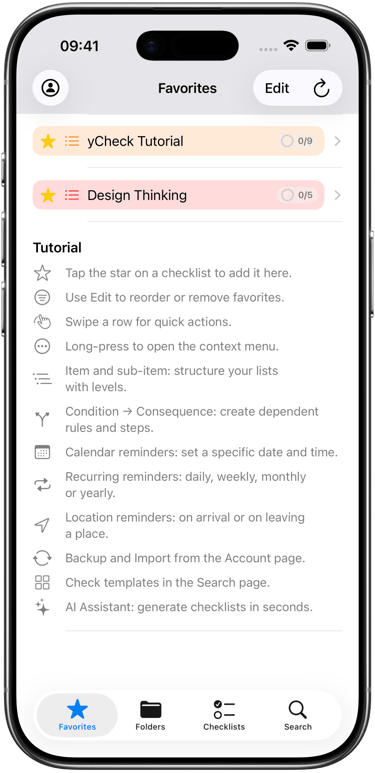
• Favorites: Your starred checklists for quick access.
• Folders: Organize related checklists by theme (e.g., Work, Home, Travel).
• Checklists: All your lists in one place.
• Search: Find reminders, templates, and manage global reminder settings.
• Edit mode: Tap Edit in the top-right of many screens to reorder, bulk-select, or perform batch actions.
Favorites
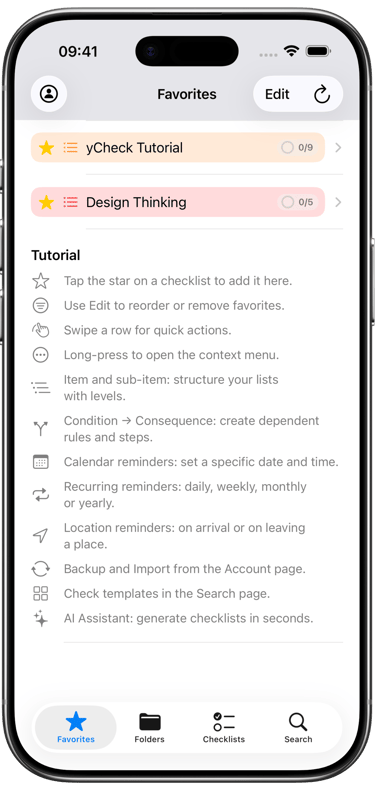
From the Favorites screen:
• Swipe a row to quickly act on a checklist.
• Tap Edit to reorder or remove favorites.
• Tip: Use Favorites for your most frequent routines (e.g., “Going Out,” “Daily Standup”).
Folders
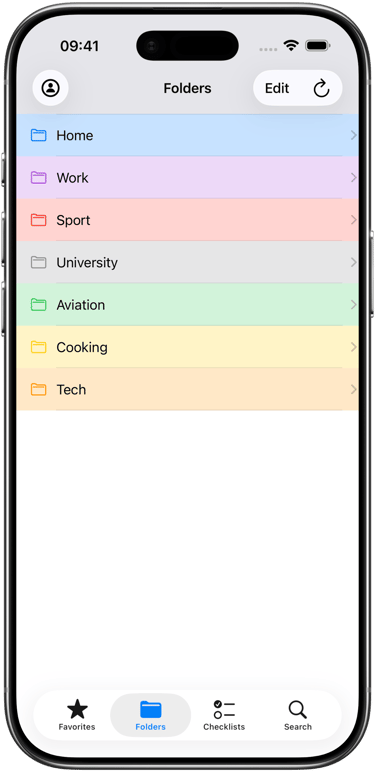
• Create folders to keep your checklists organized by context: Home, University, Work, Vacation, etc.
• Move checklists into folders from the checklist’s context menu (long-press the row or tap the ••• menu).
• Folders keep your main list clean and help you focus on what matters.
Creating and Structuring a Checklist
1. Create a new checklist from the Checklists tab or from a template in Search.
2. Add items and reorder them with drag-and-drop.
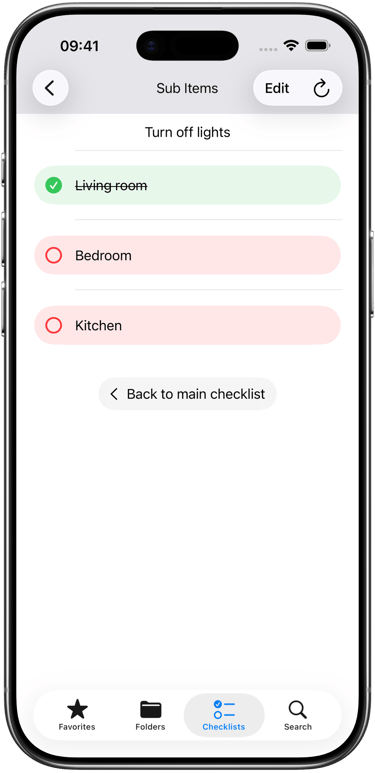
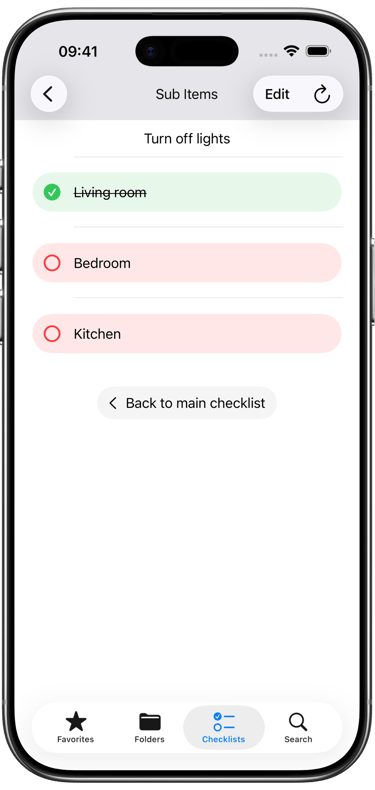
3. Use sub-items to break down complex tasks:
• Long-press an item or open its context menu to Add Sub-item.
• Sub-items appear under the parent item and can be checked off individually.
Conditions (Dependencies)
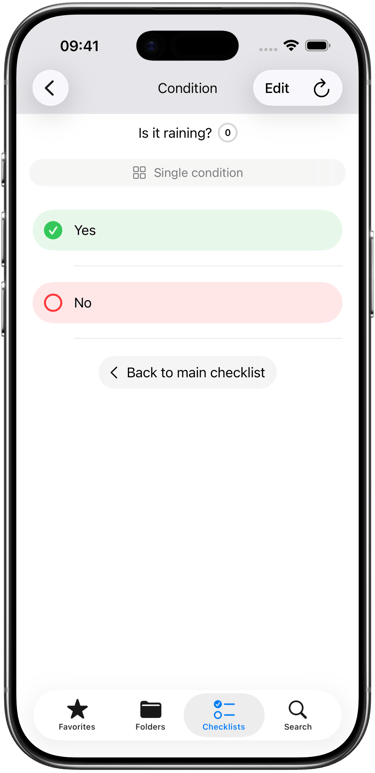
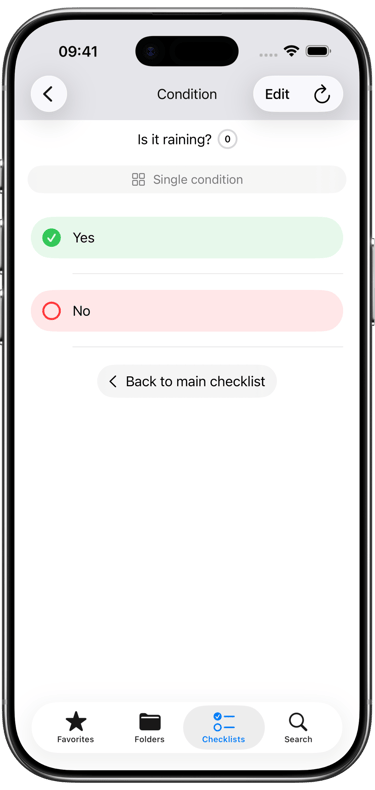
• Make one item depend on another with Add Condition.
• For example: “Take Umbrella” depends on “Is it raining?” → Yes.
• Conditional items only activate when their conditions are met, helping you keep lists relevant and uncluttered.
Reminders
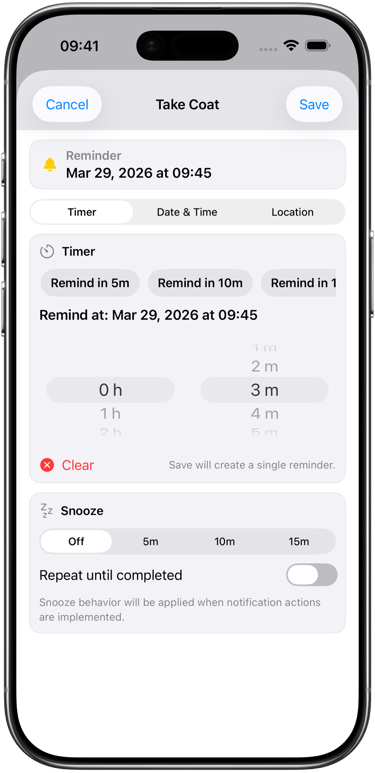
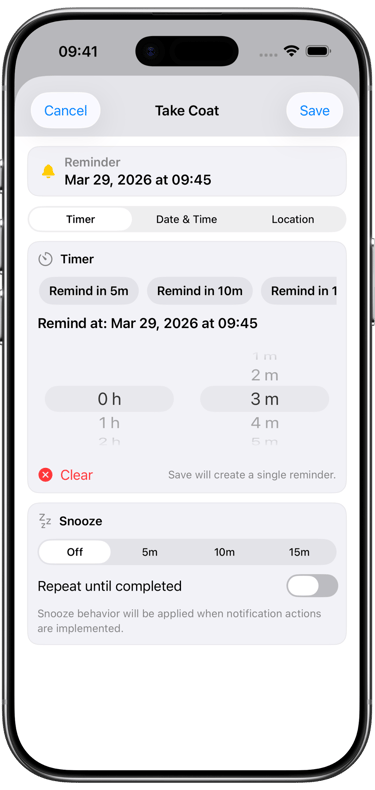
yCheck supports multiple reminder types to keep you on track:• Time-based reminders: Set a date and time for a checklist.
• Repeating schedules: Configure Daily, Weekly, Monthly, or Yearly reminders.
• Location-based reminders: Get notified when arriving at or leaving a specific place. Adjust the radius to fine-tune sensitivity.How to set a reminder:
1. From the Checklists list, open the context menu on a checklist (tap the ••• menu).
2. Tap Remind… and configure date/time, repeat options, and location if desired.
3. Save. You’ll see upcoming reminders in the Search tab under Reminders.Global reminder control:
• In Search, you’ll find a Reminders section.
• Tap the bell action to cancel all reminders across the app when needed (e.g., while traveling).
AI Assistant
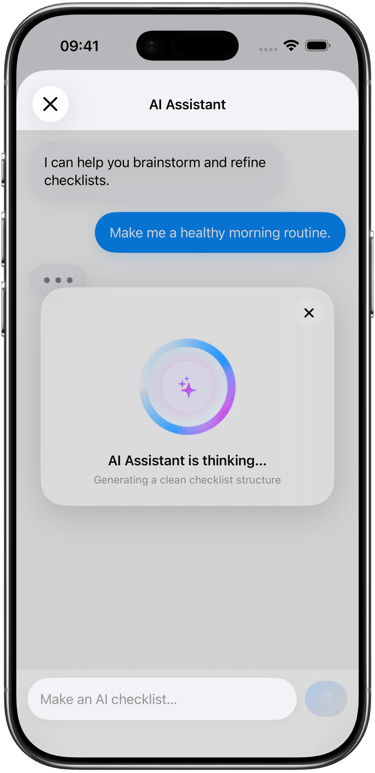
Let the AI Assistant help you brainstorm and create checklists faster.
• Open the AI Assistant from the Checklists or Search context (look for the sparkle/wand icon).
• Describe what you need: “Make me a list of places to visit in New York City.”
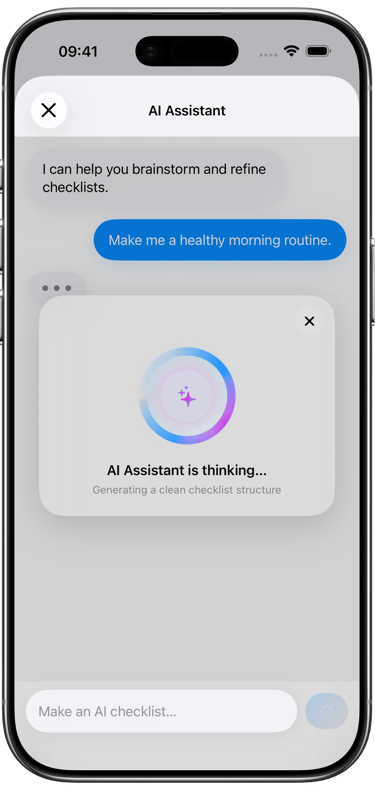
• The assistant will think, generate a structured checklist (with sections if relevant), and let you:
• Export the checklist directly into yCheck.
• Go to the new checklist and start using it immediately.
• Use the AI to refine, expand, or reorganize lists—great for trip planning, projects, learning goals, and more.
Account and iCloud Backup
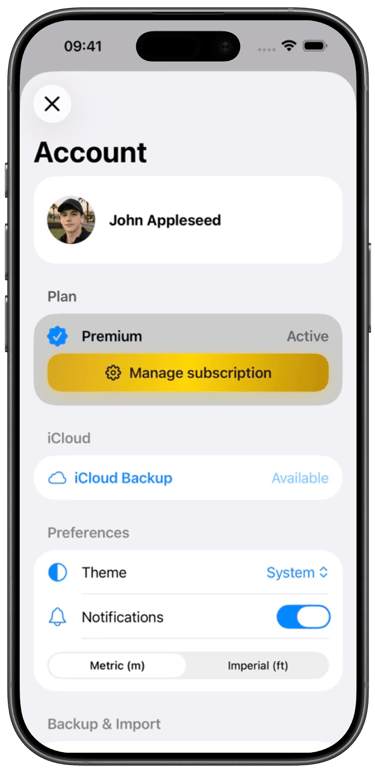
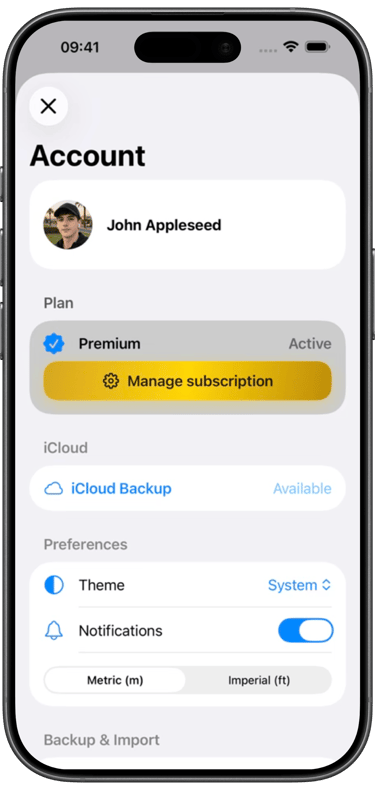
• Access the Account screen to manage your plan, theme, notifications, and iCloud backup.
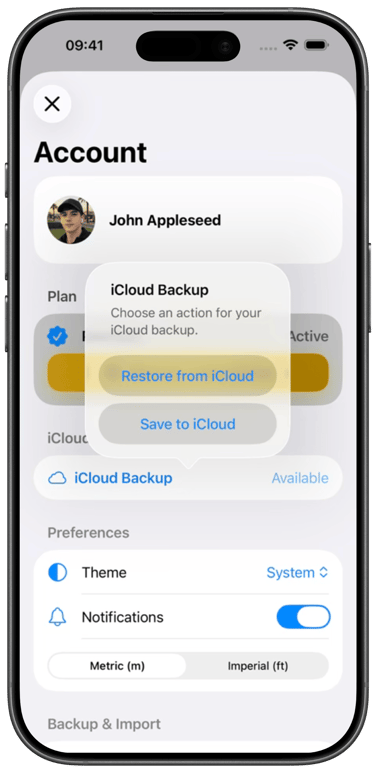
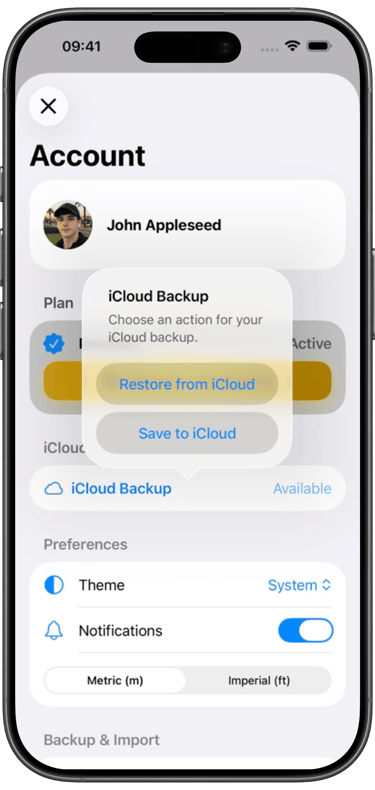
• iCloud Backup:
• Save to iCloud to keep your data safe.
• Restore from iCloud when switching devices or recovering data.
• Theme: Choose System, Light, or Dark to match your preference.
• Distance units: Choose between metric and imperial units as default setting.
• Notifications: Toggle on/off if you need a break from reminders.
Premium Features
Unlock more power with Premium:
• AI Assistant to create and refine checklists.
• Unlimited checklists, folders, favorites, and sub-items.
• Unlimited conditions to create smart, adaptive lists.
• Advanced tools like removing duplicates and managing consequences.
• Priority features designed for heavy planners and power users. Manage subscription:
• From the Account screen, tap Manage subscription.
• Restore Purchases from the Paywall or Account if you’ve previously subscribed.
Get Organized
yCheck helps you manage tasks with ease and clarity.
Flexible Lists


Build unlimited checklists and sub-items effortlessly.


Tutorial
Keep your lists updated with seamless iCloud backup.
Personalize your experience with themes and secure sign-in.
Custom Tools
yCheck transformed my daily routine—checklists have never been this easy or satisfying.
Amy K.


★★★★★
© 2025. All rights reserved.